Malachi Speaks is a free augmentative and alternative communication (AAC) app — built one real conversation at a time for a nonverbal communicator. No subscription, no account, no data leaving the device.
Coming soon to Google Play
the actual board, mid-use
Malachi Speaks started as a board built for one specific communicator — my brother Malachi. Every feature shipped because he needed it that week, not because a roadmap said so.
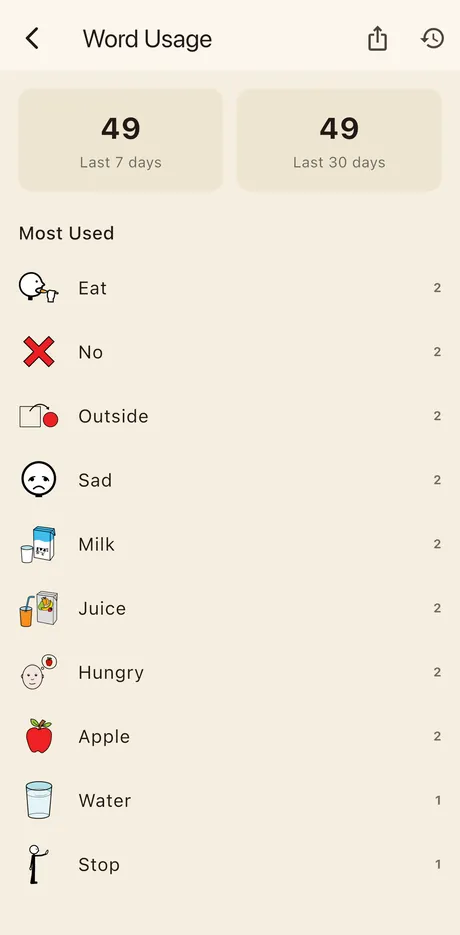
This is Malachi's own most-tapped list — not a mockup. Every count on this screen came from him actually using the board, tracked per word so a caregiver or SLP can see exactly what's landing and what isn't.
Tapping the icon at the top right of this screen turns this same data into a CSV — label, category, all-time count, 7-day count, 30-day count, last tapped — ready to attach to an IEP update.
A tap-to-speak board at its core, with the tools a parent, teacher, or speech-language pathologist actually reaches for around it.
Large, customizable tiles organized into swipeable categories. Add a photo, record a phrase, and it speaks instantly.
Chain tiles into a full phrase before speaking it, with a repeat button and on-device next-word suggestions learned from real use.
Suggest Next WordA keyboard for someone who can spell what they want to say, speaking in their own voice, with the phrases they save one tap away. Can replace the picture board entirely.
Type to SpeakUrgent words like "stop" and "help" stay one tap away on every screen; a Recently Used tab surfaces whatever was just said.
A PIN protects adding, editing, and reordering tiles and categories — the board itself stays simple and un-editable for the communicator.
One device, a separate board for each person — their own tiles, voice, settings, and usage log, switched behind the caregiver PIN.
ProfilesPer-word 7 and 30-day trends, all-time counts, and never-used tiles — exportable as a CSV for IEP documentation.
Word UsageAn on-device rotating backup on a schedule you choose, plus one-tap manual export/import to move a board to a new device.
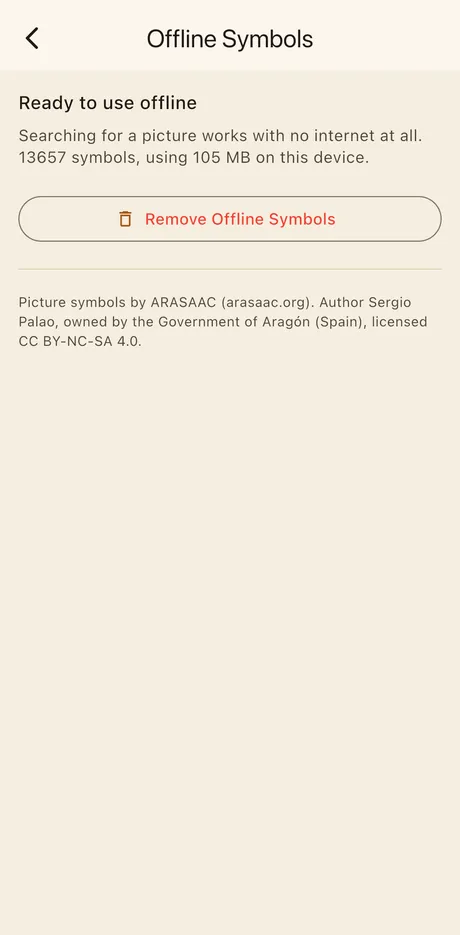
Backup & RestoreSearch dozens of free picture-symbol libraries at once when adding a tile, with control over which libraries are included — or download every symbol once and search them with no connection at all.
Offline SymbolsPick the device voice, adjust rate and pitch, and set a repeat-tap delay to absorb accidental double-taps.
Record a parent saying “Mom”, a sibling's name, or any word the built-in voice gets wrong. The recording plays instead of the synthetic voice, and never leaves the device.
Record a VoicePut a typed message across the whole screen for someone else to read — a loud room, a drive-through window, a waiting area, or a listener who is hard of hearing.
Type a word to find the tile you want to change, matching both the label and what it says out loud — no scrolling through every category to fix “the juice one”.
A PDF laid out to match the screen, same categories and grid. Batteries die, devices get left at school, and no tablet goes in the pool.
Open Board Format (.obf/.obz) import and export — the AAC interoperability standard. Bring a board in from another app, or take yours out. Both formats import automatically.
Open Board FormatThis section is kept current with the app itself — it describes exactly what you'll find on screen, using the same names the app uses.
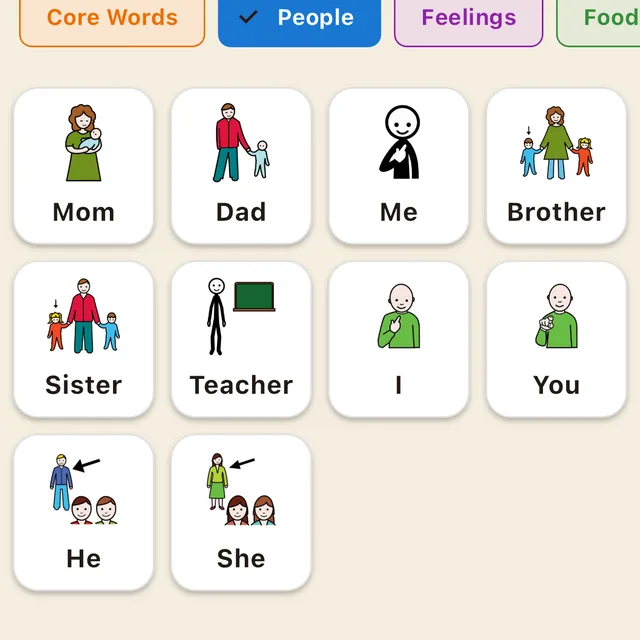
Tap any tile to hear it spoken out loud. Switch between topics — Core Words, People, Feelings, and so on — using the row of tabs along the top, or swipe the board itself sideways. Swiping past the last category wraps around to the first, and swiping back past the first wraps around to the last, so navigation keeps going in either direction.
The board is plain tap-to-speak with no hidden menus, so it stays safe and predictable during everyday use.
Turn on Sentence Builder Mode in Settings and tapping a tile adds it to a strip above the categories instead of speaking right away. Tap the checkmark to speak the whole sentence at once. A "Sentence Words" category appears alongside the others, holding connector words like What, Where, and Can.
Two optional shortcuts, turned on in Settings under Quick Access:
Both update automatically as the board is used.
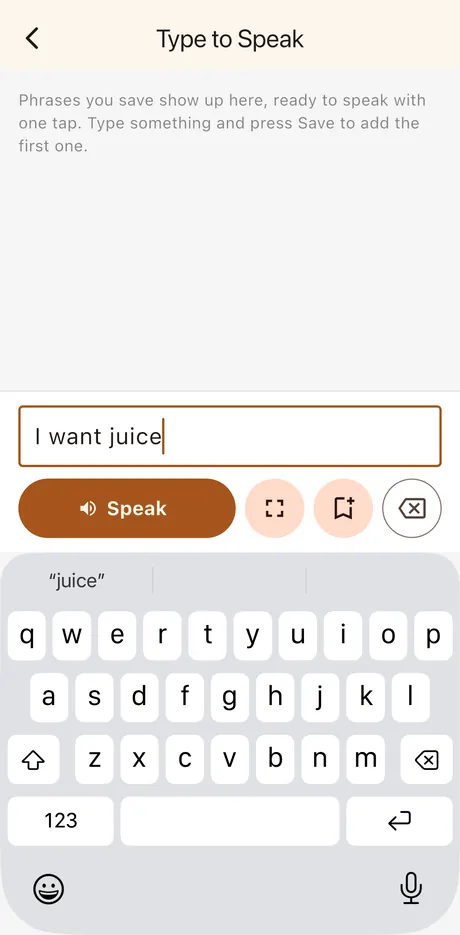
For someone who can spell what they want to say, the app can offer a keyboard instead of tiles. Turn on Type to Speak in Settings under Interaction Mode, and a Type chip appears at the start of the category row.
Speech doesn't always land. In a loud room, at a drive-through window, or with a listener who is hard of hearing, the message can be handed over to be read instead of heard.
From Type to Speak, the expand button beside Speak puts the typed message across the whole screen, set as large as it will fit. Turn the device sideways for more width. Tap anywhere to close.
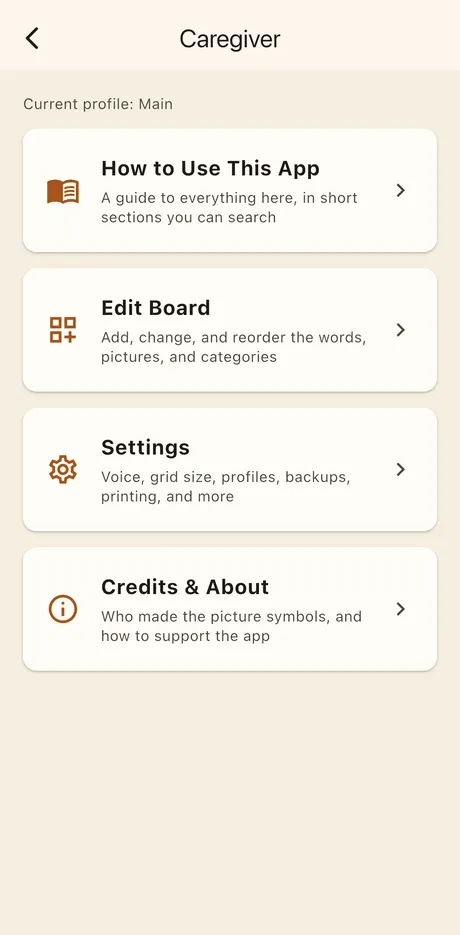
Everything below this point — adding tiles, changing settings — sits behind a PIN so the board itself stays simple. Tap the small gear icon in the corner of the main screen, then enter the Caregiver PIN. One PIN covers the whole device.
From Edit Board, tap Add Tile under any category (or under Quick Actions to add a quick-access tile). Give it a label, and optionally a different phrase for it to actually say out loud — a tile could display "Mom" while speaking "I want Mom."
For the picture, tap Choose Image for five options:
Symbol search pulls from dozens of free picture-symbol libraries at once, including ARASAAC. Choose which libraries are searched from Symbol Libraries to Search in Settings. Tap an existing tile to edit it, its trash icon to delete it, or press and drag its row to reorder it within the category.
Any tile can speak in a recorded voice instead of the synthetic one. Open the tile and tap Record a Voice. Useful when the built-in voice mangles a name, or when hearing a familiar person say the word matters more than a neutral one.
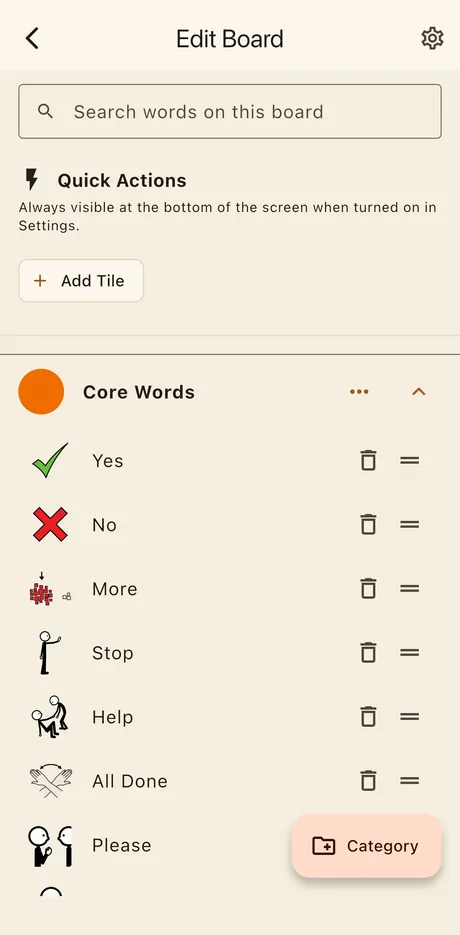
A board grows quickly, and the starter board alone is around ninety tiles. The search box at the top of Edit Board finds a tile by typing part of it, so nothing has to be hunted for by scrolling.
It matches both the label on the tile and what the tile says out loud, so searching “juice” finds a tile labelled “Drink” that says “I want juice”. Each result shows the category it belongs to, and tapping it opens the same editor as usual. Clearing the box brings back the normal category-by-category view.
Tap Category at the bottom of Edit Board to add a new topic with its own name and color. Use the "⋯" menu next to any category to rename it, change its color, or delete it — deleting a category also deletes every tile inside it, so it always asks first. Press and drag a category's row to reorder categories themselves; that order controls both the tab order and the swipe order on the main screen.
Pick a voice and adjust how fast or high it sounds, then tap Test Voice to hear it before committing. Other controls worth knowing:
Boards get built where the person actually is — a waiting room, a car, a school hallway — which is exactly where the signal is worst. Offline Symbols in Settings downloads every ARASAAC picture symbol once, after which searching for a picture needs no connection at all.
Picture symbols by ARASAAC (arasaac.org), author Sergio Palao, owned by the Government of Aragón (Spain), licensed CC BY-NC-SA 4.0.
One device can hold a board for more than one person. Turn on Multiple Profiles in Settings under Profiles. It's off by default, and a device serving one person never has to think about it.
Settings → Word Usage shows which tiles actually get tapped: an all-time running total for each one, plus 7-day and 30-day trends computed per word — not just a board-wide total — so you can see whether a specific target word is trending up or down. A Never Used list surfaces candidates to teach directly or swap out.
Tap the export icon to share a CSV with every tile's label, category, all-time count, 7-day count, 30-day count, and last-tapped date — built for handing off as documentation for an IEP meeting. Reset Usage Log clears everything and starts fresh.
One screen in Settings covers moving a board on or off the device:
Importing reads the file to work out what it is, so the
same Import Board button takes either a Malachi Speaks backup or an
.obf/.obz file from another AAC app. A board
arriving from elsewhere is always added as a new profile rather than
replacing the one in use.
Batteries die, devices get left at school, and no tablet goes in the pool. The printer icon in Edit Board produces a PDF laid out to match the screen — same categories, same order, same number of columns — so a word sits where the person already reaches for it.
There's no subscription, no paid tier, and no ads in Malachi Speaks, and that isn't going to change — nothing here is held back behind a donation. If the app has been useful to someone in your house and you'd like to put something toward the time that goes into it, these are the two ways to do that.